Setup
AI Assistant requires an API key from a supported AI provider. This page covers the administrator setup process.
Requirements
- Administrator access to your Directus instance
- API key from at least one supported provider: OpenAI, Anthropic, or Google (see below)
- Users must have App access - Public (non-authenticated) or API-only users cannot use AI Assistant
- AI Assistant can be disabled at the infrastructure level using the
AI_ENABLEDenvironment variable
Alternatively, you can use an OpenAI-compatible provider like Ollama or LM Studio for self-hosted models.
Get an API Key
You'll need an API key from at least one provider. Choose based on which models you want to use.
OpenAI provides GPT-5 models (Nano, Mini, Standard).
- Go to platform.openai.com and sign in or create an account
- Navigate to API Keys in the left sidebar (or go directly to platform.openai.com/api-keys)
- Click Create new secret key
- Give it a name like "Directus AI Assistant"
- Copy the key immediately - you won't be able to see it again
Anthropic provides Claude models (Haiku 4.5, Sonnet 4.5, Opus 4.5).
- Go to console.anthropic.com and sign in or create an account
- Navigate to API Keys in the settings
- Click Create Key
- Give it a name like "Directus AI Assistant"
- Copy the key immediately
Google provides Gemini models (2.5 Flash, 2.5 Pro, 3 Flash Preview, 3 Pro Preview).
- Go to aistudio.google.com and sign in with your Google account
- Click Get API Key in the left sidebar
- Click Create API Key
- Select or create a Google Cloud project
- Copy the generated API key
Configure Providers in Directus
Navigate to AI Settings
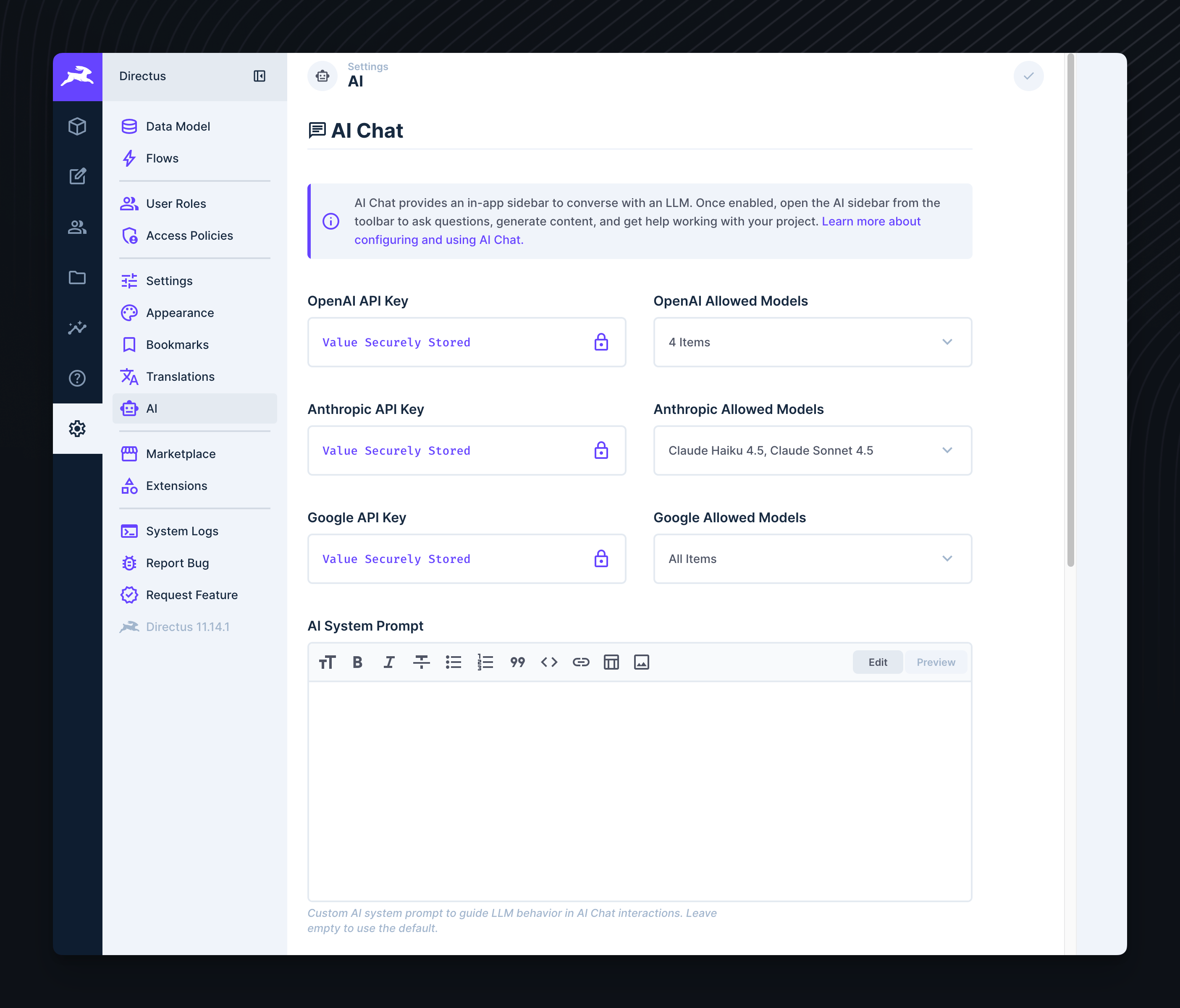
Go to Settings → AI in the Directus admin panel.
Enter Your API Keys
Add your API key for one or more providers:
- OpenAI API Key - Enables GPT-4 and GPT-5 models
- Anthropic API Key - Enables Claude models
- Google API Key - Enables Gemini models
Configure Allowed Models
For each provider, you can restrict which models are available to users. Use the Allowed Models dropdown next to each API key field to select the models users can choose from.
- If no models are selected, no models from that provider will be available
- You can add custom model IDs by typing them and pressing Enter (useful when new models are released)
This is useful for:
- Controlling costs by limiting access to expensive models
- Ensuring compliance by only allowing approved models
- Simplifying the user experience by reducing model choices
Save Settings
Click Save to apply your changes. AI Assistant is now available to all users with App access.
OpenAI-Compatible Providers
In addition to the built-in providers, Directus supports any OpenAI-compatible API endpoint. This allows you to use self-hosted models, alternative providers, or private deployments.
Configuration
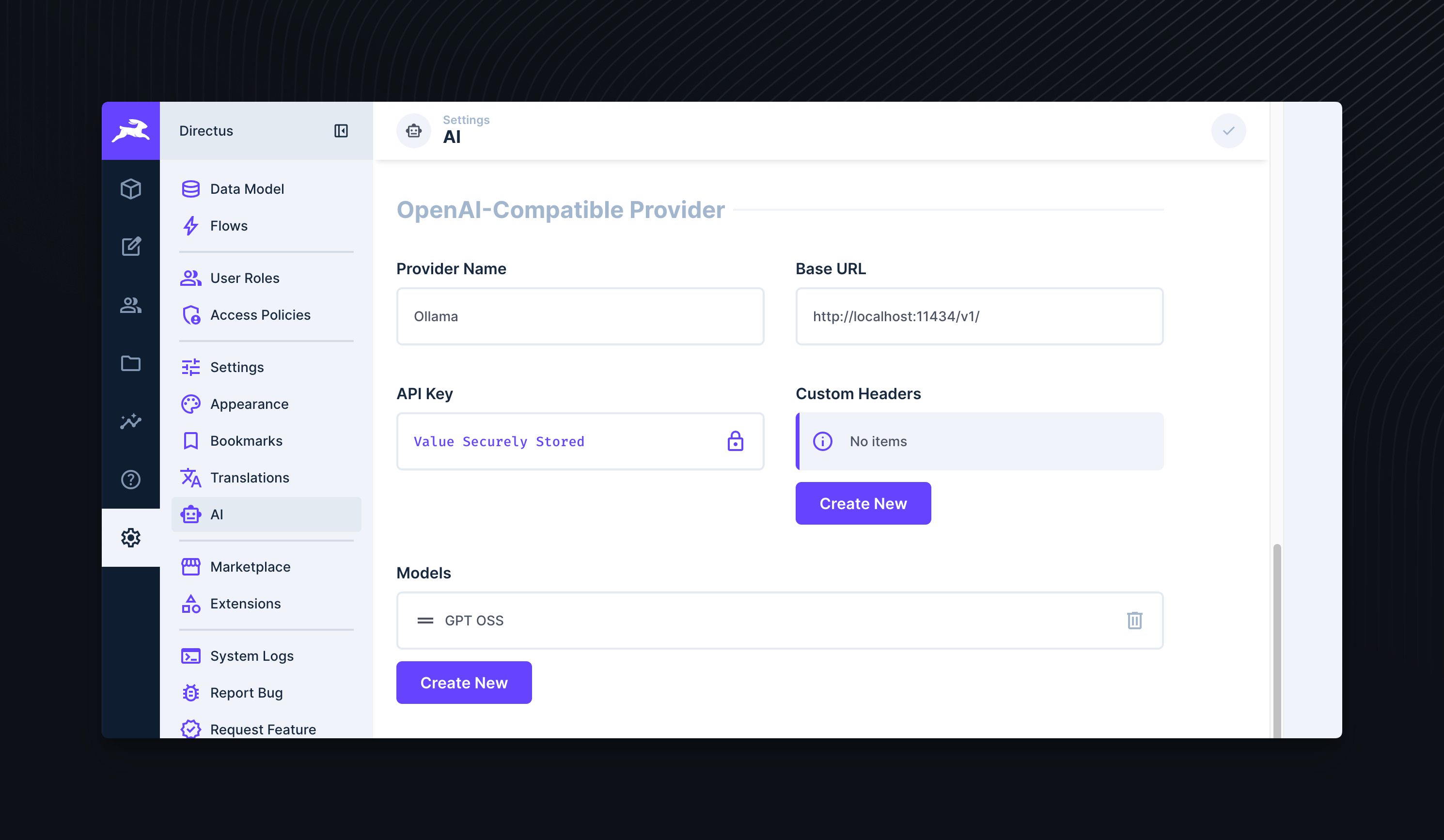
In Settings → AI, scroll to the OpenAI-Compatible section and configure:
| Field | Description |
|---|---|
| Provider Name | Display name shown in the model selector (e.g., "Ollama", "LM Studio") |
| Base URL | The API endpoint URL (required). Must be OpenAI-compatible. |
| API Key | Authentication key if required by your provider |
| Custom Headers | Additional HTTP headers for authentication or configuration |
| Models | List of models available from this provider |
Model Configuration
For each model, you can specify:
| Field | Description |
|---|---|
| Model ID | The model identifier used in API requests |
| Display Name | Human-readable name shown in the UI |
| Context Window | Maximum input tokens (default: 128,000) |
| Max Output | Maximum output tokens (default: 16,000) |
| Supports Attachments | Whether the model can process images/files |
| Supports Reasoning | Whether the model has chain-of-thought capabilities |
| Provider Options | JSON object for model-specific parameters |
Example Configurations
Ollama lets you run open-source models locally.
- Install Ollama and pull a model:
ollama pull gpt-oss:20b - Ollama runs on
http://localhost:11434by default
Directus Configuration:
- Provider Name:
Ollama - Base URL:
http://localhost:11434/v1 - API Key:
ollama(required by the OpenAI SDK but ignored by Ollama) - Models: Add your pulled models (e.g.,
gpt-oss:20b,gpt-oss:120b,qwen3:8b)
ollama cp gpt-oss:20b gpt-4See Ollama OpenAI compatibility docs for supported endpoints and features.
Azure OpenAI Service provides OpenAI models through Microsoft Azure.
- Create an Azure OpenAI resource in the Azure portal
- Deploy a model (e.g., GPT-4, GPT-4o)
- Get your endpoint and API key from the Develop tab in your resource
Directus Configuration:
- Provider Name:
Azure OpenAI - Base URL:
https://YOUR-RESOURCE.openai.azure.com/openai/v1 - API Key: Your Azure OpenAI API key
- Models: Add your deployed model names
api-version header. If using an older API version, add api-version as a custom header (e.g., 2024-10-21).See Azure OpenAI documentation for setup details.
Mistral AI provides high-performance open and commercial models.
- Create an account at console.mistral.ai
- Generate an API key
Directus Configuration:
- Provider Name:
Mistral - Base URL:
https://api.mistral.ai/v1 - API Key: Your Mistral API key
- Models: Add models like
mistral-large-latest,mistral-small-latest,codestral-latest
See Mistral AI documentation for available models and pricing.
Custom System Prompt
Optionally customize how the AI assistant behaves in Settings → AI → Custom System Prompt.
The default system prompt provides the AI with helpful instructions on how to interact with Directus and is tuned to provide good results.
If you choose to customize the system prompt, it's recommended to use the following template as a starting point:
<behavior_instructions>
You are **Directus Assistant**, a Directus CMS expert with access to a Directus instance through specialized tools

## Communication Style

- **Be concise**: Users prefer short, direct responses. One-line confirmations: "Created collection 'products'"
- **Match the audience**: Technical for developers, plain language for content editors
- **NEVER guess**: If not at least 99% about field values or user intent, ask for clarification

## Tool Usage Patterns

### Discovery First

1. Understand the user's task and what they need to achieve.
2. Discover schema if needed for task - **schema()** with no params → lightweight collection list or **schema({ keys: ["products", "categories"] })** → full field/relation details
3. Use other tools as needed to achieve the user's task.

### Content Items

- Use `fields` whenever possible to fetch only the exact fields you need
- Use `filter` and `limit` to control the number of fetched items unless you absolutely need larger datasets
- When presenting repeated structured data with 4+ items, use markdown tables for better readability

### Schema & Data Changes

- **Confirm before modifying any schema**: Collections, fields, relations always need approval from the user.
- **Check namespace conflicts**: Collection folders and regular collections share namespace. Collection folders are distinct from file folders.

### Safety Rules

- **Deletions require confirmation**: ALWAYS ask before deleting anything
- **Warn on bulk operations**: Alert when affecting many items ("This updates 500 items")
- **Avoid duplicates**: Never create duplicates if you can't modify existing items
- **Use semantic HTML**: No classes, IDs, or inline styles in content fields (unless explicitly asked for by the user)
- **Permission errors**: Report immediately, don't retry

### Behavior Rules

- Call tools immediately without explanatory text
- Use parallel tool calls when possible
- If you don't have access to a certain tool, ask the user to grant you access to the tool from the chat settings.
- If there are unused tools in context but task is simple, suggest disabling unused tools (once per conversation)

## Error Handling

- Auto-retry once for clear errors ("field X required")
- Stop after 2 failures, consult user
- If tool unavailable, suggest enabling in chat settings
</behavior_instructions>
Leave blank to use the default behavior.
Managing Costs
Tips for controlling costs:
- Use faster, cheaper models (GPT-5 Nano, Claude Haiku 4.5, Gemini 2.5 Flash) for simple tasks
- Use Allowed Models to restrict access to expensive models
- Disable unused tools - disabled tools are not loaded into context, reducing token usage
- Set spending limits in your provider dashboard:
- Consider self-hosted models via OpenAI-compatible providers for cost control
Next Steps
Get once-a-month release notes & real‑world code tips...no fluff. 🐰